

Everyone knows that access keys are not the most optimal or secure way of authentication. However, they are still very prevalent in today’s environments. Cosmos DB is one of the more common resources where I still see a lot of Access Key usage for data plane actions. Especially because the alternative is a little hidden. In this blog post, I will show you how easy migrating to an RBAC-based approach can be, if done correctly.
To optimise your CI/CD cycle, I have provided a script which can be used to automatically add the necessary role assignments for your Azure Identities and Applications. Be sure to stick around to the end.
Why is it so important to shy away from Access Keys?
Access keys are not bound to a user account, so we have no way of knowing who used these keys to access data on the cosmos account. This could be the developer’s code where he lists or updates records, but it could also be a threat actor who has acquired the access keys through unoptimized code or phishing. Access Keys also do not provide a simple way of revoking access. Of course, you can regenerate the entire key, but that will impact all usages of these keys.
A preferred way of working is using Role-Based Access Control (RBAC) for user accounts and Managed Identities. This allows us to know exactly who, what and when someone accessed the resource. Additionally, unlike the access keys, revoking access is a lot less impactful. You can remove the role assignment for a specific user or service principal/managed identity, and this does not have any effect on other role assignments.
Additionally, access keys can become compromised through bad development practices or inattentiveness of the developers or DevOps engineers. Using service principals or managed identities has a lot less risk attached to it, as it is harder to expose the credentials accidentally. To be able to safeguard the service principals, best practices for secret management should be followed. This can include using a key vault integration with Azure DevOps pipelines libraries or fetching the application secret in the pipeline directly. These best practices should always be followed in both situations.
As Is situation
I set up a Cosmos DB account ‘cosmos-brck-d-01’ with a test database ‘Demo-brck’ and a collection ‘demo’ in my Azure Sandbox environment.
Head over to the Azure portal and locate your Cosmos DB instance. On the overview blade, select ‘JSON-View’, here you can check if you have local authentication enabled, this is the case in my sandbox environment:

When I try to list data in the collection ‘demo’ with an access key, I get the following output:
$resourceGroupname = "rg-brck-d-cosmos"
$cosmosDBAccountName = "cosmos-brck-d-01"
$databaseName = "Demo-brck"
                                                                           $cosmosDBAccountKey = Get-CosmosDBAccountMasterKey -ResourceGroupName $resourceGroupName -Name $cosmosDBAccountName

$cosmosDbContext = New-CosmosDbContext -Account $cosmosDBAccountName -Database $databaseName -Key $cosmosDBAccountKey

Get-CosmosDbDocument -Context $cosmosDbContext -CollectionId "demo"
As can be seen on the screenshot, we can perfectly query the data in the demo database, which is a common practice for applications that need to store unstructured data. This is an easy, but not ideal setup.
To Be situation
Disable Local Authentication
Now, let’s disable the local access for this Cosmos DB account. This can be easily achieved by using the following PowerShell commands:
$parameters = @{
ResourceGroupName = $resourceGroupname
ResourceName = $cosmosDBAccountName
ResourceType = "Microsoft.DocumentDB/databaseAccounts"
}

$resource = get-AzResource @parameters
$resource.properties.DisableLocalAuth = $true
$resource | Set-AzResource -Force
Verify Local Authorization is disabled
If we try the same command we used previously, you will see that we get an error stating that using access keys is not an accepted authentication method.

This is something that can also be verified in the Azure Portal via the Cosmos DB Instance. Head over to the ‘Data Explorer’ Blade. There, we will see the following message:

To enable Entra ID RBAC Auth, in the Data Explorer, click on the top-right cogwheel, open up the ‘Enable Entra ID RBAC’ and select ‘True’:
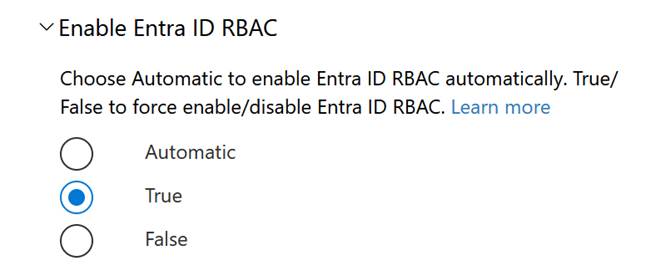
This will allow us to authenticate using Entra ID RBAC when the correct role assignments are assigned. And ensures that no local authentication using access keys is allowed.
Assigning permissions
How do we migrate to an RBAC-based authentication model? For management plane actions, we can use the built-in roles provided by Microsoft:

However, if we want to migrate to an RBAC-based model for data plane actions, we will need to resort to a different approach. You cannot assign Cosmos DB roles for data plane actions through the Azure Portal, as can be seen on the following MS learn page: https://learn.microsoft.com/en-us/azure/cosmos-db/how-to-setup-rbac
We are able to assign this role through the use of Az CLI v2.24.0 or higher, the Az.CosmosDB powershell module v1.2.0 or higher, and through the Microsoft.DocumentDB/databaseAccounts/sqlRoleAssignments ARM resource. I have provided an Azure PowerShell script for you to assign your roles. Let’s go ahead and assign myself the contributor role on the Cosmos DB Account using the script mentioned above:
.\CosmosRoleAssignments.ps1 -parCosmosDBResourceGroupName $resourceGroupname -parCosmosDBAccountName $cosmosDBAccountName -parRole "Contributor" -parPrincipalId "85829e36-89e7-4e19-9267-4955f3ca0a2c" -parContainerName $databaseNameTo verify we can now access the data via an EntraIDToken, we can use the CosmoDB PowerShell Module V5.1.0, to get a correct EntraID Token. Follow the steps below:
First, let us install the module itself:
Install-Module -Name CosmosDB -RequiredVersion 5.1.0Then, we have to request a token and set the context:
$entraIdOAuthToken = Get-CosmosDbEntraIdToken -Endpoint "https://$cosmosDBAccountName.documents.azure.com"

 $newCosmosDBContextParams = @{
  Account = $cosmosDBAccountName
  EntraIdToken = $entraIdOAuthToken
  Database = $databaseName
}

$entraIdAccountContext = New-CosmosDbContext @newCosmosDbContextParams
Finally, we can get a document in the demo collection like we did previously using the account key, but now using RBAC permissions:

How should you migrate?
First, we need to assess which applications, or parts of the application, are making calls to the Cosmos DB instance. The Application owners, or Architects within your company, should have a general overview of which applications will be making data plane calls to your Cosmos DB account. This can give an initial idea of where to look, however, it might not provide you with enough fine-grained information and confidence to complete the migration. What else can we do?
First, if this is not the case yet, let us enable Diagnostic settings on the Cosmos Account and let’s forward them to a Log Analytics Workspace. We will specifically enable the ‘DataPlaneRequests’ category:
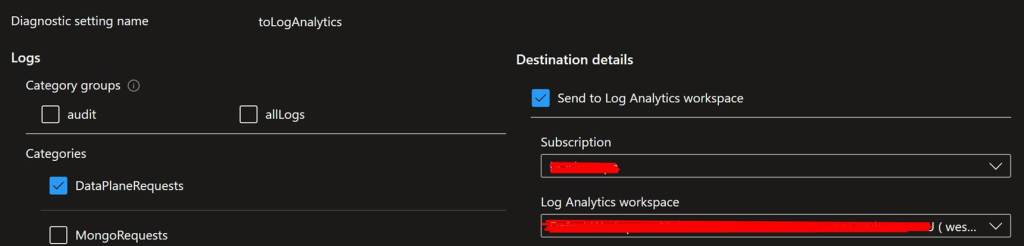
Once this has been done, give it some time, ideally, you would like to have anywhere from 1-4 weeks of data that you can query to identify which Applications are making use of the access keys of the Cosmos Account.
An example of a data plane action in the logs can give us a lot of information regarding which applications and users are using the access keys and Cosmos DB account. Some information we can find in the logs includes:
User Agent:

Which IP address and which Key was used for the authentication:
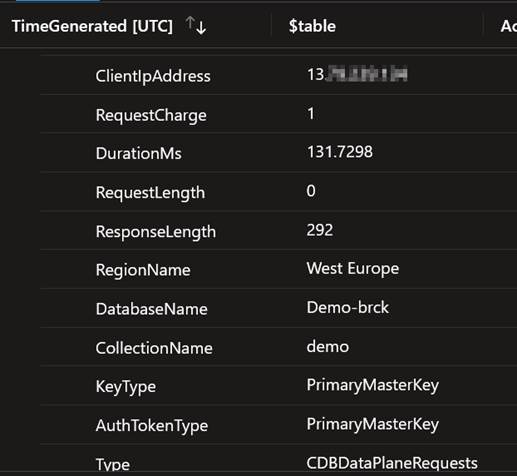
This can already provide a tremendous amount of information to identify which applications are connecting and making calls.
Once we have identified some key metrics, we can look to implement the RBAC based authentication in a development environment to ensure the current application can be prepared to not use key-based authentication but the preferred RBAC-based authentication.
This entails configuring the necessary CosmosDB Nosql role assignments for App Registrations and System-or User User-assigned Managed Identities related to any Azure resources in the environment. Afterwards, updates to the application code should be completed based on the documentation for the Code Language you are using. The below KQL Query can be used to identify which Identities are connecting using RBAC-auth to the Cosmos DB Account:
CDBDataPlaneRequests
| where AuthTokenType == 'AadToken'
| summarize LatestTimeGenerated = arg_max(TimeGenerated, *) by AadPrincipalId, ClientIpAddress, DatabaseName, CollectionName
| project LatestTimeGenerated, AadPrincipalId, ClientIpAddress, DatabaseName, CollectionName
Initially, we will not disable the local authentication. Only when all necessary code changes are finalised on the development environment, can we monitor using the Cosmos DB logs to ensure there are no more Key-based authentication requests coming from applications. Use the following KQL Query to verify no usage of Key-based authentication:
CDBDataPlaneRequests
| where AuthTokenType contains 'MasterKey'
Once verified that only RBAC-based authentication is used, we can disable the local access to the Cosmos DB account. The same exercise will have to be performed on all other environments, and finally on the Production environment. A close collaboration between DevOps engineers, Platform engineers and developers is crucial so that there is no need for downtime or if issues arise, they can be tackled immediately.
Script Breakdown
Below, I have provided a PowerShell script for you to integrate in your CI/CD cycle to ensure that all Managed Identities can successfully authenticate to the Cosmos DB Nosql Instance without any issues.
param(
    [Parameter(Mandatory = $true)]
    [ValidateNotNullOrEmpty()]
    [string]$parCosmosDBResourceGroupName = $(throw "parCosmosDBResourceGroupName is required"),

    [Parameter(Mandatory = $true)]
    [ValidateNotNullOrEmpty()]
    [string]$parCosmosDBAccountName = $(throw "parCosmosDBAccountName is required"),

    [Parameter(Mandatory = $false)]
    [string]$parContainerName = "",

    [Parameter(Mandatory = $true)]
    [ValidateNotNullOrEmpty()]
    [ValidateSet("reader", "contributor")]
    [string]$parRole = $(throw "Role should be reader or contributor"),

    [Parameter(Mandatory = $true, HelpMessage = "The client id of the azure identity or objectId of a group or user")]
    [ValidateNotNullOrEmpty()]
    [string]$parPrincipalId = $(throw "Identity ClientId is required")
)

$cosmosDBAccount = Get-AzCosmosDBAccount -ResourceGroupName $parCosmosDBResourceGroupName | Where-Object {$_.Name -eq $parCosmosDBAccountName}

if($cosmosDBAccount){
   $RoleDefinitionId = if ($parRole -eq "reader"){
      "00000000-0000-0000-0000-000000000001"
   }
   else {
      "00000000-0000-0000-0000-000000000002"
   }

   if ($parContainerName -eq "") {
      Write-Host "Checking if Role Assignment exists on Cosmos Account $parCosmosDBAccountName!"
      $RoleAssignments = Get-AzCosmosDBSqlRoleAssignment `
      -ResourceGroupName $parCosmosDBResourceGroupName `
      -AccountName $parCosmosDBAccountName | Where-Object {($_.PrincipalId -eq $parPrincipalId) -and ($_.RoleDefinitionId.Contains("$($cosmosAccount.id)/sqlRoleDefinitions/$RoleDefinitionId"))}

   }else {
      Write-Host "Checking if Role Assignment exists on DB Container $parContainerName in Cosmos DB Account $parCosmosDBAccountName!"
      $RoleAssignments = Get-AzCosmosDBSqlRoleAssignment `
      -ResourceGroupName $parCosmosDBResourceGroupName `
      -AccountName $parCosmosDBAccountName | Where-Object {($_.PrincipalId -eq $parPrincipalId) -and ($_.Scope.Contains("/dbs/$parContainerName")) -and ($_.RoleDefinitionId.Contains("$($cosmosAccount.id)/sqlRoleDefinitions/$RoleDefinitionId"))}
   }

   # First check if the role assignment exists or not

   if($RoleAssignments){
      Write-Host "Role $parRole Already exists for $parPrincipalId"
   }
   else {
      if ($parContainerName -eq "") {
         Write-Host "Role Assignment does not yet exist, creating:" -ForegroundColor DarkYellow
         Write-Host "Creating a new $parRole role assignment on Cosmos DB Account $parCosmosDBAccountName"
         New-AzCosmosDBSqlRoleAssignment `
            -ResourceGroupName $parCosmosDBResourceGroupName `
            -AccountName $parCosmosDBAccountName `
            -RoleDefinitionId $RoleDefinitionId `
            -Scope "/" `
            -PrincipalId $parPrincipalId
      }else {
         Write-Host "Role Assignment does not yet exist, creating:" -ForegroundColor DarkYellow
         Write-Host "Creating a new $parRole role assignment on Container $parContainerName in Cosmos DB Account $parCosmosDBAccountName"
         New-AzCosmosDBSqlRoleAssignment `
            -ResourceGroupName $parCosmosDBResourceGroupName `
            -AccountName $parCosmosDBAccountName `
            -RoleDefinitionId $RoleDefinitionId `
            -Scope "/dbs/$parContainerName" `
            -PrincipalId $parPrincipalId
      }
      Write-Host "Identity with ObjectId $parPrincipalId has been assigned the $parRole!"
   }
}
else {
   Write-Host "Cosmos DB Account $parCosmosDBAccountName in resource group $parCosmosDBResourceGroupName cannot be found."
   exit 1
}

Write-Host "All Done!"
Parameters are provided to enable you to fully automate the addition of role assignments to a certain scope of the Cosmos DB Account. You can opt to assign roles to specific Databases within the Cosmos DB Account itself. First, we will check if the Cosmos DB account exists. Then we will verify if the role assignment already exists based on the ID and Role you want to assign; this is a crucial part to ensure continuity in larger projects. Lastly, we will configure the Cosmos Contributor or Cosmos Reader role for the provided identity and scope.
If you want to update or adapt the script, make sure you keep the section which checks if the Cosmos DB role assignment already exists. This is a crucial part of the script, as Microsoft has not built in a check themselves.
In a large project, we provided this script to our developers for integrations in their CI/CD pipeline to ensure all role assignments for the Azure Managed Identities were always present. Due to the size of this project, the pipeline was running multiple times a day, resulting in additions of the same role assignments. Once these role assignments reached 1000, they received an incomprehensible error, resulting in a failed pipeline run.
Conclusion and takeaways
To increase the security of your entire environment and applications making use of Azure Cosmos DB, consider implementing and enforcing RBAC authentication on your data resources. This will ensure that, if an access key gets leaked, malicious threat actors will not be able to exfiltrate any data from the Cosmos DB account. Key-based authentication does not provide the necessary context and information as RBAC-based authentication does. Querying the logs when RBAC-Auth has been enabled can provide valuable information in regards to which and how identities are connecting to the Cosmos DB Account.
This migration entails risks and should be carefully planned with close collaboration of all the parties involved. Ideally, this configuration change is tested on non-production environments to ensure no downtime or issues arise when the local authentication is disabled for the Cosmos DB Account. Use the logs provided by Microsoft to your advantage to identify key applications to enable a smooth transition in your various application environments.
Finally, feel free to use my script, but if you want to create something yourself, do not forget to check the presence of the role assignment you are adding to the Cosmos DB scope. This is a crucial part in the long run, and will save you hours of troubleshooting!
 Mostly Cloud
Leave a comment